# Pre-Setup Guide
{% hint style="warning" %}
Before continuing, download [WinRAR](https://www.win-rar.com/fileadmin/winrar-versions/winrar/winrar-x64-720.exe) and install it. This is required to extract `.rar` files.
{% endhint %}
{% stepper %}
{% step %}
### Download Microsoft VisualC++
* [Visit this link](https://www.techpowerup.com/download/visual-c-redistributable-runtime-package-all-in-one/).
* Download VisualC++, then extract the file. Right-click the file, then press **Extract**.
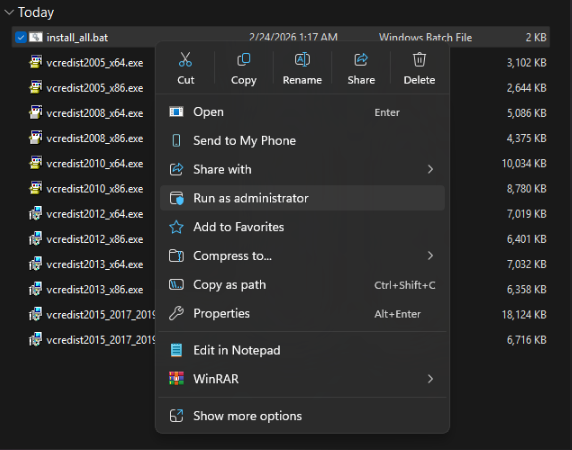
* Run the `Install All` file as administrator.
{% endstep %}
{% step %}
### Disable Windows Defender
Why do I need to turn off anti virus?
Windows Security and third-party antivirus services will proactively block "injection" methods. This is a false-positive detection that must be resolved before proceeding.
Do these three actions:
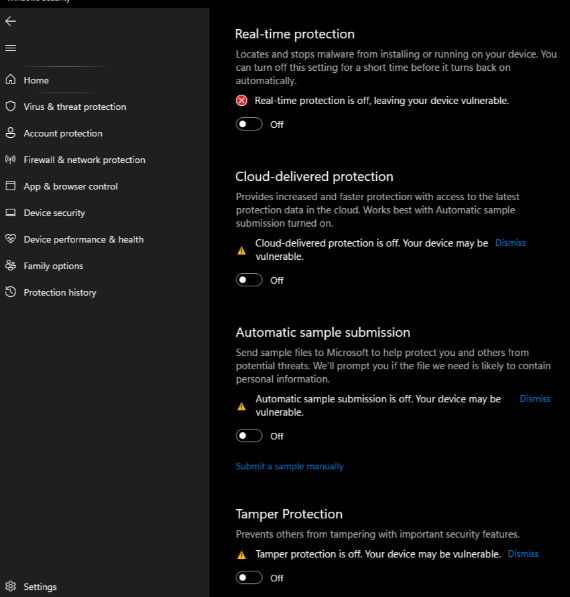
#### 1. Turn off Virus & threat protection
* Open `Virus & threat protection`.
* Click `Manage settings`.
* Turn every option off.
* Make sure `Real-time protection` is off.
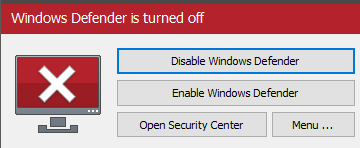
#### 2. Turn off Windows Defender with DControl
* Download [DControl](https://mega.nz/file/hBlikayL#yw6giPaLYe4RMVhjTd7nB2aJ9jzz4lwCvYRCTWupbDg).
* Open it.
* Select `Disable Windows Defender`.
Why do I need to install DControl?
Windows Defender is designed to automatically re-enable itself after a restart or a period of inactivity. DControl (Windows Defender Control) permanently suppresses these security services to ensure they stay off, saving you the time of re-disabling them every session. It also provides a simple way to toggle protection back on whenever you choose.
#### 3. Turn off the remaining Windows Security options
Open Windows Security and turn off everything shown below.
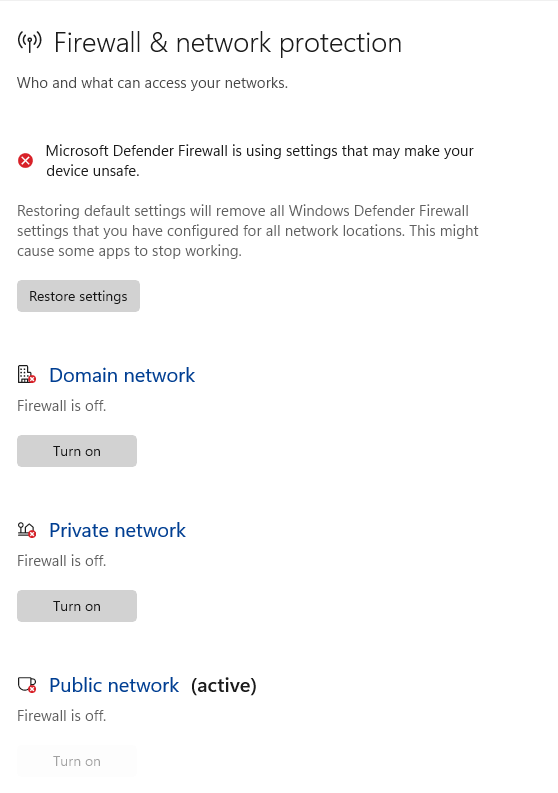
**Firewall & network protection**
* Open `Domain network`, `Private network`, and `Public network`.
* Turn the firewall off in all three.
**App & browser control**
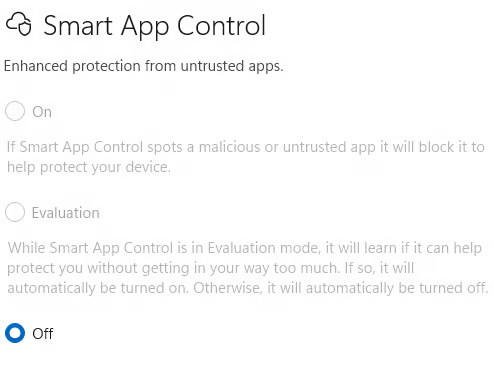
* Set `Smart App Control` to `Off`.
* Turn off:
* `Check apps and files`
* `SmartScreen for Microsoft Edge`
* `SmartScreen for Microsoft Store apps`
* `Phishing protection`
Inside `Phishing protection`, also turn off:
* `Warn me about malicious apps and sites`
* `Warn me about password reuse`
* `Warn me about unsafe password storage`
* `Automatically collect website or app content when additional analysis is needed to help identify security threats`
{% hint style="info" %}
When finished, every protection above should show `Off`.
{% endhint %}
{% endstep %}
{% step %}
### Remove Other Anti-Cheats
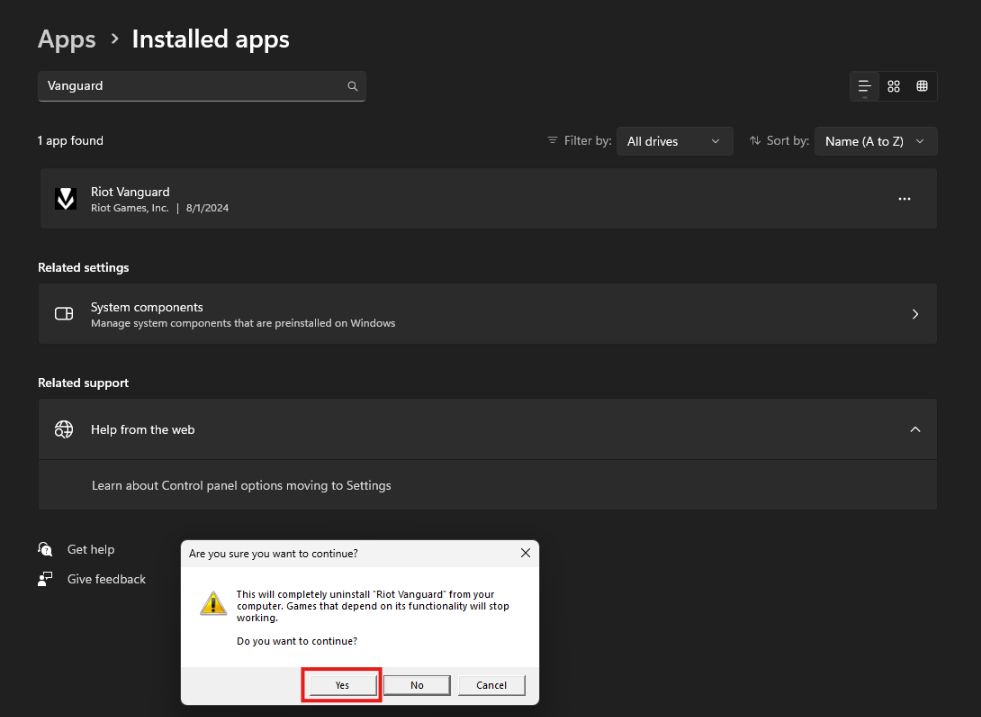
Uninstall the following if installed:
* FACEIT Anti-Cheat
* Vanguard (Valorant Anti-Cheat)
{% hint style="info" %}
If a product specifically requires one of these anti-cheats, you can keep it installed. It will be supported
{% endhint %}
{% endstep %}
{% step %}
### Sync Date & Time
* Right-click the clock and click `Adjust date/time`.
* You can also go to `Start > Settings > Time & language > Date & time`.
* Under `Synchronize your clock`, click `Sync now`.
[Direct link to Date & Time settings](ms-settings:dateandtime)
{% endstep %}
{% step %}
### Disable Core Isolation
* Download and install: [Here](https://cdn.discordapp.com/attachments/1368270037101842462/1489775960508334170/Turn_Core_Isolation_Memory_Integrity_OFF.reg?ex=69d1a57b\&is=69d053fb\&hm=59cc4be6881fdc610058128e0a4f98bc0b43df166cfae4af6cb723a4bc4b56f6&).
* Open it.
* Click `Yes` twice.
{% endstep %}
{% step %}
### Microsoft .NET Framework
* Download and install: [Here](https://builds.dotnet.microsoft.com/dotnet/Sdk/10.0.201/dotnet-sdk-10.0.201-win-x64.exe).
* Download and install: [Here](https://download.microsoft.com/download/1/7/1/1718ccc4-6315-4d8e-9543-8e28a4e18c4c/dxwebsetup.exe).
{% endstep %}
{% endstepper %}